Google Meet Breakout Rooms: Everything You Need to Know
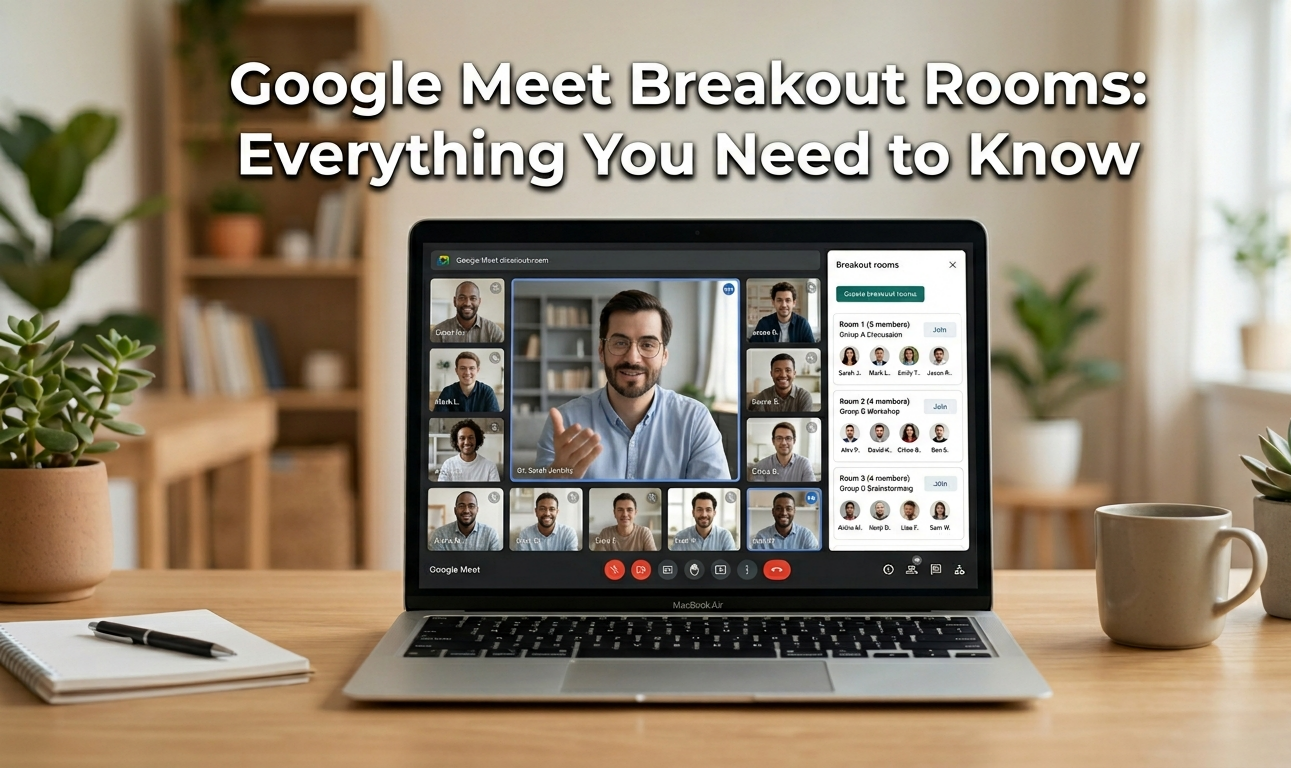
If you run virtual meetings, teach online classes, or manage remote teams, you have probably wondered how to split your session into smaller, focused groups. Google Meet breakout rooms make this possible — and they work surprisingly well once you know how to set them up. In this complete guide, you will learn everything about breakout rooms in Google Meet: what they are, how to create them, who can access them, and how to use them effectively for both education and business.
Table of contents
- Does Google Meet Have Breakout Rooms?
- What Are Breakout Rooms in Google Meet?
- How to Create Breakout Rooms in Google Meet
- Google Meet Breakout Rooms for Teachers and Students
- Google Meet Breakout Rooms – Feature Overview Table
- Pros and Cons of Google Meet Breakout Rooms
- Google Meets Breakout Rooms vs Other Meeting Tools – Which Is Best?
- Conclusion
Does Google Meet Have Breakout Rooms?
Yes — Google Meet does have breakout rooms. The feature was rolled out as part of Google Workspace and allows meeting hosts to divide participants into separate smaller sessions within a single meeting. Each group can collaborate privately, and the host can move between rooms, send announcements, and bring everyone back together at any time.
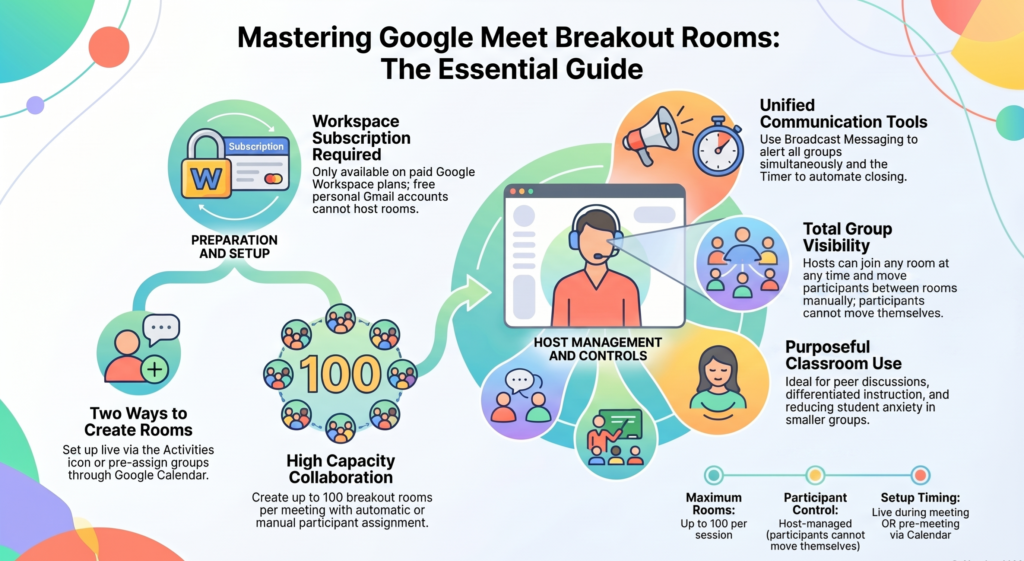
However, Google Meet breakout rooms are not available on all plans. Access depends on your Google Workspace subscription. Free Google accounts (personal Gmail) do not currently support the breakout rooms feature. You need a Google Workspace plan — such as Google Workspace Essentials, Business Standard, Business Plus, Enterprise, Education Plus, or Teaching and Learning Upgrade — to unlock it.
What Are Breakout Rooms in Google Meet?
Breakout rooms in Google Meet are virtual sub-rooms created within a main meeting. When a host activates them, participants are assigned to smaller groups where they can have private conversations, work on tasks, or discuss topics away from the main session.
Think of it like a classroom where the teacher asks students to split into groups at different tables — except it happens entirely online. The host (teacher or meeting organizer) remains in the main room and can visit any breakout room at any time, send messages to all rooms simultaneously, and close all rooms to bring everyone back together.
Key characteristics of Google Meet breakout include:
- Up to 100 breakout rooms per meeting (depending on Workspace plan)
- Participants can be assigned manually or automatically
- The host can join any room at any time
- A countdown timer can be set to automatically close rooms
- All participants return to the main meeting when rooms are closed
This makes Google Meet breakout one of the most powerful Google Meet collaboration tools for structured group work.
How to Create Breakout Rooms in Google Meet
Creating Google Meet is straightforward once you know where to find the option. Here is the full process from setup to launch. Long meetings can reduce productivity and increase costs, so try our Meeting Cost Calculator to estimate the real cost of team meetings.
Setting Up Breakout Rooms as a Host
You can set up breakout rooms in Google Meet either before the meeting starts (via Google Calendar) or during a live meeting:
During a live meeting:
- Join your Google Meet session as the host.
- Click the “Activities” icon in the bottom-right toolbar (looks like a grid of shapes).
- Select “Breakout rooms” from the menu.
- Choose the number of rooms you want to create (up to 100).
- Select “Automatically” to let Google assign participants, or “Manually” to drag and drop names.
- Click “Open Rooms” to launch all breakout sessions.
Participants will receive a notification and be moved into their assigned rooms. The host stays in the main room until they choose to visit a specific breakout session.
Before the meeting (via Google Calendar):
- Open Google Calendar and create or edit a meeting event.
- Click “Add Google Meet video conferencing.”
- Open meeting options and navigate to the Breakout rooms tab.
- Pre-assign participants to rooms using their email addresses.
Pre-assigning rooms is ideal for Google Meet breakout rooms for teachers who want structured groups ready before class starts.
Managing Breakout Rooms During a Meeting
Once rooms are open, managing breakout rooms in Google Meet gives the host full control over the entire session:
- Visit a room: Click “Join” next to any room name in the breakout rooms panel.
- Send a message to all rooms: Click “Broadcast message” to send a text announcement visible in every room simultaneously.
- Set a timer: Use the clock icon to add a countdown — rooms will automatically close when time expires.
- Move participants: Drag a participant’s name to a different room in the panel at any time.
- Close all rooms: Click “Close rooms” to end all breakout sessions and return everyone to the main meeting.
These Google Meet host controls give organizers complete visibility and flexibility during any group activity.
Google Meet Breakout Rooms for Teachers and Students
Google Meet breakout rooms for teachers have become an essential tool in the modern digital classroom. Educators use them to replicate the small-group learning experience of a physical classroom in a fully online environment.
Common classroom uses:
- Group projects: Assign student teams to separate rooms to work on assignments together
- Peer discussions: Send students into pairs or trios to discuss a reading or topic before reporting back
- Differentiated instruction: Place students at different learning levels in separate rooms with tailored tasks
- Virtual labs or activities: Run simultaneous small-group experiments or role plays
Google Meet breakout rooms for students create a more engaging, interactive learning experience compared to a static full-class video call. Students can speak freely in a smaller group, which reduces anxiety and increases participation — especially for quieter students who rarely speak in large sessions.
For educators using Google Workspace for Education, the breakout rooms feature is fully integrated with Google Classroom, making it easy to organize groups based on existing class rosters.
Google Meet Breakout Rooms – Feature Overview Table
Here is a quick reference to understand how Google Meet breakout rooms work across key dimensions:
| Feature | Details |
|---|---|
| Maximum breakout rooms | Up to 100 rooms per meeting |
| Participant assignment | Automatic or manual |
| Host room access | Host can join any room at any time |
| Broadcast messaging | Yes — host can message all rooms at once |
| Timer/auto-close | Yes — countdown timer available |
| Pre-meeting setup | Yes — via Google Calendar meeting options |
| Plan requirement | Google Workspace (not free Gmail accounts) |
| Education support | Full support in Google Workspace for Education |
This table covers everything you need to know about the Google Meet breakout room feature before planning your next session.
Pros and Cons of Google Meet Breakout Rooms
Like any virtual meeting breakout session tool, Google Meet breakout rooms have clear strengths and some limitations worth knowing.
Pros:
- Deeply integrated with Google Workspace and Google Calendar
- Clean, intuitive interface — easy to set up in under 60 seconds
- Broadcast messaging keeps all groups aligned without interrupting sessions
- Pre-meeting room assignment saves time during live classes or meetings
- Automatic participant assignment speeds up large session management
- Timer feature adds structure and keeps groups on schedule
- Works seamlessly on desktop and mobile Google Meet apps
Cons:
- Not available on free Google accounts — requires a paid Workspace plan
- Participants cannot move themselves between rooms (host must do it)
- No persistent whiteboard or shared workspace inside individual breakout rooms
- Feature availability varies by Workspace plan tier
- Limited customization compared to Zoom’s breakout room settings
For most professional and educational use cases, the pros significantly outweigh the cons — especially for organizations already using Google Workspace as their primary productivity suite.
Google Meets Breakout Rooms vs Other Meeting Tools – Which Is Best?
When comparing Google Meet breakout rooms with similar features offered by other video conferencing platforms, the best option ultimately depends on your team’s workflow, collaboration needs, and the tools already integrated into your daily operations.
Google Meet breakout rooms are the best choice if your team or school already uses Google Workspace. The seamless integration with Gmail, Google Calendar, and Google Classroom makes the entire meeting lifecycle — from scheduling to group work — smoother than any competing platform in the Google ecosystem.
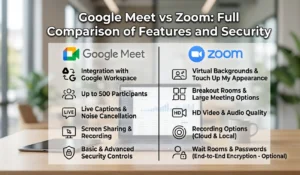
Zoom breakout rooms offer slightly more customization — participants can request to move rooms themselves, and hosts get more granular controls. However, Zoom requires a separate subscription and does not integrate as naturally with Google tools.
Microsoft Teams breakout rooms are the best option for organizations running Microsoft 365, offering tight integration with SharePoint and OneNote inside each room.
For educators, corporate trainers, and remote teams already embedded in Google’s ecosystem, Google Meet breakout rooms deliver the ideal balance of simplicity, power, and Google Meet meeting management efficiency. If your organization lives in Google Workspace, there is no better option for structured group collaboration.
Conclusion
Google Meet breakout rooms are one of the most valuable features in the Google Workspace meeting toolkit. Whether you are a teacher running small-group classroom activities, a corporate trainer managing team workshops, or a meeting host facilitating structured discussions, breakout rooms in Google Meet give you the control and flexibility to make every virtual session more engaging and productive.
Explore our Digital Productivity guides for practical tips, workplace tools, and productivity calculators.
The setup takes under a minute, the host controls are powerful, and the integration with Google’s broader ecosystem makes it the smartest choice for any organization already using Google Workspace. Now that you know exactly how Google Meet breakout rooms work — including plan requirements, creation steps, and best practices — you are ready to run more focused, efficient meetings.
FAQs
Q1: Does Google Meet have breakout rooms for free users?
No. The Google Meet breakout rooms feature requires a Google Workspace subscription. Free personal Gmail accounts do not have access. Plans that include it include Google Workspace Business Standard, Business Plus, Enterprise, and Education tiers.
Q2: How many breakout rooms can you create in Google Meet?
You can create up to 100 Google Meet breakout rooms in a single meeting, depending on your Workspace plan. Each room can hold multiple participants simultaneously.
Q3: Can students move between breakout rooms on their own?
No. In Google Meet breakout rooms, only the host can move participants between rooms. Students and participants cannot switch rooms independently — the host must reassign them via the breakout rooms panel.
Q4: Can the host join a breakout room without participants knowing?
Yes. The host can silently join any breakout room at any time from the breakout rooms panel. Participants may see a notification that the host has joined, depending on Google Meet settings.
Q5: How do I close all breakout rooms at once in Google Meet?
In the breakout rooms panel, click “Close Rooms.” All participants will receive a countdown notification and be automatically returned to the main meeting session.
Q6: Are Google Meet breakout rooms available on mobile?
Yes. Breakout rooms in Google Meet are accessible from the Google Meet mobile app on both iOS and Android, though the host management controls are more limited on mobile compared to desktop.