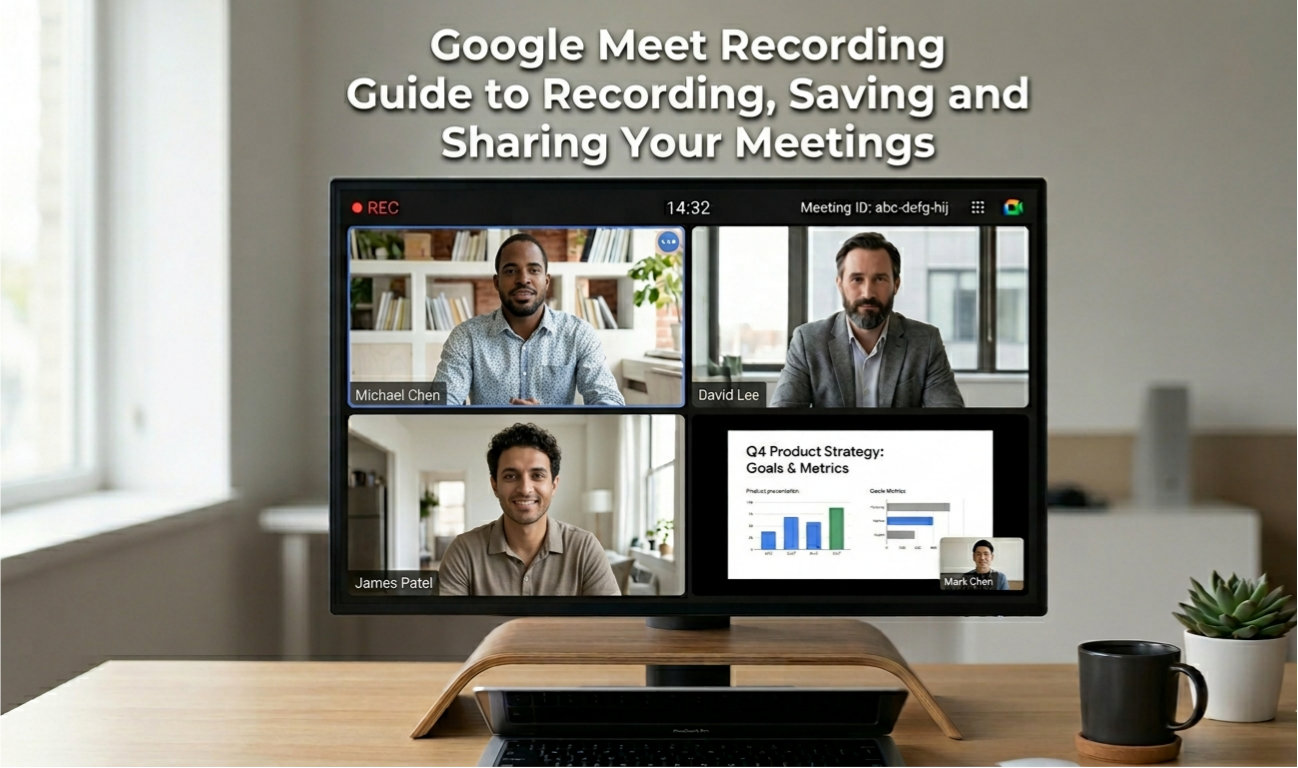
Google Meet Recording Guide to Recording, Saving and Sharing Your Meetings
Every meeting contains information worth preserving — decisions made, action items assigned, context established. Google Meet recording transforms live conversations into permanent references that participants can revisit and non-attendees can catch up on. Yet despite the feature’s value, many Meet users encounter consistent friction. Recordings may not appear, download links may fail to work, or settings may block the record button entirely. This complete guide covers every dimension of Google Meet recording — what the feature requires, how to record meetings in Google Meet correctly across different account types, and where recordings are stored. It explains how to share and download recordings, and how to resolve the most common problems that prevent successful recording.
Table of contents
- What Is Google Meet Recording?
- How to Record a Google Meet Session — Step by Step
- Google Meet Recording — Who Can Record?
- Where Are Google Meet Recordings Saved?
- How to Download a Google Meet Recording ?
- Google Meet Recording Permissions Explained
- Google Meet Recording Not Showing — Common Issues and Fixes
- Google Meet Recording for Business and Education
- Conclusion
What Is Google Meet Recording?
Google Meet recording is a built-in feature that captures audio, video, and shared screen content from a Google Meet session and saves it as a video file for later access. The recording captures everything visible in the meeting — participant video feeds, presentations, screen shares, and the Google Meet interface itself — along with all audio from participants who are unmuted during the session.
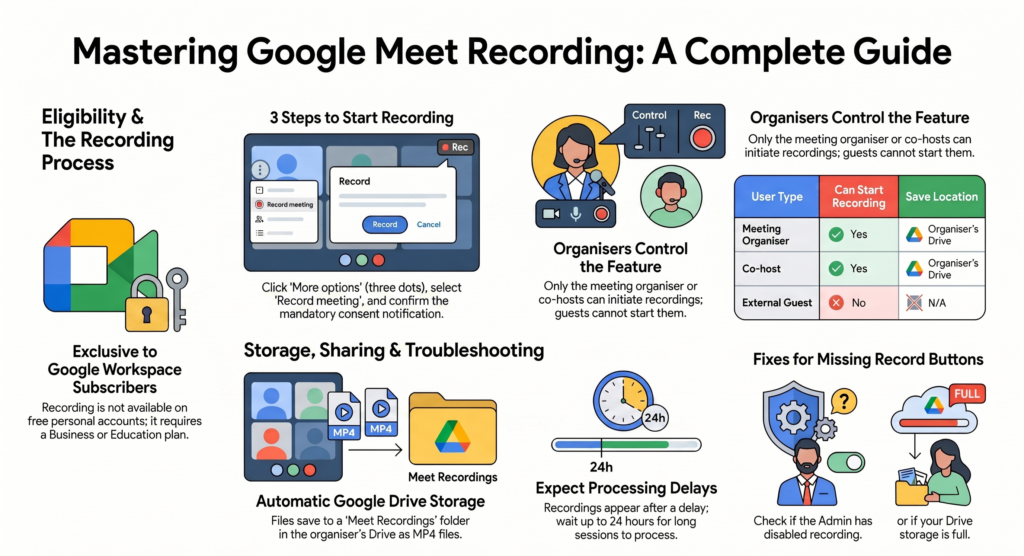
It is available exclusively to Google Workspace subscribers — it is not available on free personal Google accounts. This distinction is one of the most important things to understand before searching for the record button, because free account holders genuinely do not have access to the feature regardless of what settings they adjust.
The specific Google Workspace plans that include Google Meet recording are Business Starter, Business Standard, Business Plus, Enterprise plans, Education Plus, and Teaching and Learning Upgrade. Users on Google Workspace Essentials or individual plans without recording entitlement see the recording option greyed out or absent entirely.
Once a recording is complete, it is automatically saved to the meeting organiser’s Google Drive, making Google Drive integration the primary storage mechanism for all Google Meet recording output. Understanding this automatic save behaviour is essential for finding recordings after a session ends.
How to Record a Google Meet Session — Step by Step
How to record meeting in Google Meet follows a consistent process across desktop and mobile, though the specific controls differ slightly by platform.
Recording important meetings can reduce repeated discussions and wasted time. Use our Meeting Cost Calculator to understand the real cost of team meetings.
On Desktop (Browser or Desktop App):
Start or join the Google Meet session where you have recording permission. Click the three-dot menu (More options) at the bottom right of the meeting screen. Select “Record meeting” from the menu that appears. A consent notification appears informing all participants that the session is being recorded — this notification is mandatory and cannot be disabled. Click “Start recording” to confirm. A red recording indicator appears in top left corner of the meeting screen confirming that Google Meet recording is active. To stop recording, return to the three-dot menu and select “Stop recording,” or the recording stops automatically when all participants leave the meeting.
On Mobile (iOS or Android):
Google Meet recording on mobile requires the host to initiate recording from a desktop device in most configurations. Mobile participants can view the recording indicator when recording is active but typically cannot start or stop recording from a mobile device depending on account settings and admin configuration.
What Gets Recorded:
The Google Meet recording captures the active speaker view or the pinned participant view depending on the organiser’s layout settings, all shared screens and presentations in full resolution. It also captures all audio from unmuted participants and any in-meeting captions if enabled. It does not capture breakout room sessions separately — breakout rooms are not recorded as part of the main meeting recording.
Google Meet Recording — Who Can Record?
Understanding recording permissions prevents the confusion of not being able to find the record button when you expect it.
| User Type | Can Start Recording | Recording Saves To | Admin Controls Apply |
| Meeting organiser (Workspace host) | Yes — if plan includes recording | Organiser’s Google Drive | Yes |
| Co-host (if assigned) | Yes — if admin allows | Organiser’s Google Drive | Yes |
| Standard participant | No — by default | N/A | Admin can modify |
| Guest (external participant) | No | N/A | Cannot be changed |
| Free Google account user | No — feature unavailable | N/A | N/A |
The meeting organiser and any co-hosts assigned within the meeting can start and stop it. Standard participants cannot initiate recordings unless a Google Workspace administrator has specifically enabled this through the Admin Console. External guests — people joining from outside the organiser’s Google Workspace domain — cannot initiate recordings regardless of plan or settings.
Where Are Google Meet Recordings Saved?
After Google Meet recording ends, recording file is automatically saved to specific location in Google Drive rather than appearing instantly.
The recording saves to the meeting organiser’s Google Drive — specifically in a folder called “Meet Recordings” that Google creates automatically if it does not already exist. This means that even if a co-host initiated the recording, file saves to the organiser’s Drive rather than the co-host’s.
The save process takes time after the meeting ends — longer meetings require more processing time. A short thirty-minute meeting may be available within minutes, while a three-hour Google Meet recording may take an hour or more to appear in Google Drive.
Once saved, Google automatically sends an email notification to the meeting organiser with a direct link to the Google Meet recording in Google Drive. If meeting was scheduled through Google Calendar, all invited participants also receive an email notification with access to the recording link — a helpful automatic sharing mechanism for team meetings.
How to Download a Google Meet Recording?
Google Meet recording download requires accessing the file in Google Drive where it was automatically saved.
Access Google Drive and open the “Meet Recordings” folder to find your saved meeting files. Google Meet stores recordings in MP4 format, typically labeling each file with the meeting title along with the date it was recorded for easy identification. Right-click the file and select “Download” to save it to your local device. For large recordings, Google Drive compresses the download into a zip file that extracts to the MP4 on your device.
Sharing a recording before downloading is often more efficient than downloading and then redistributing. Google Drive’s sharing features allow the organiser to share the recording with specific people, with anyone who has the link, or with the entire organisation — maintaining the cloud file rather than creating copies.
If you regularly manage large virtual meetings, check out our guide on Google Meet Breakout Rooms to organize participants into smaller discussion groups.
If Google Meet recording download option is missing or disabled, most common cause is Google Workspace storage limits being reached. When Google Drive storage is full, new recordings cannot save and existing recordings cannot be downloaded until storage is freed or expanded.
Google Meet Recording Permissions Explained
Recording permission settings determine who can initiate, view, and access Google Meet recordings and are controlled at three levels.
Google Workspace Admin Level: Administrators can enable or disable recording for the entire domain, for specific organisational units, or for specific user groups. If an administrator has disabled recording, no user in the affected group can record regardless of their plan tier. Admin Console settings are the first place to investigate when recording options are missing for user who should have access.
Meeting Organiser Level: The organiser controls whether participants beyond co-hosts can record and determines who receives automatic access to the recording after the meeting. Organisers can also manually share or restrict access to the Google Drive recording after the session.
Participant Level: Standard participants cannot override organiser or admin settings. Guests and external participants are always restricted from recording regardless of other settings.
The recording consent notification — the message that appears to all participants when a recording starts — is mandatory under Google Meet’s terms of service and cannot be suppressed. This notification serves legal consent purposes and ensures all participants are aware the session is being preserved.
Google Meet Recording Not Showing — Common Issues and Fixes
When a Google Meet recording does not appear in Google Drive after a session, several specific causes account for the majority of reported cases.
Processing delay: The most common reason recordings do not appear immediately is that Google’s processing pipeline is still encoding and saving the file. Wait at least 24 hours before concluding a recording was lost, particularly for long sessions.
Wrong Drive account: If the meeting organiser has multiple Google accounts, the recording may have saved to a different account’s Drive than expected. Check all associated Google accounts before assuming the recording is missing.
Storage full: Google Drive storage limits prevent new recordings from saving. Check the organiser’s Drive storage usage — if it shows full or near full, the recording may not have completed saving. Free up space or purchase additional storage to resolve this.
Meeting ended abruptly: If all participants were removed simultaneously — due to a technical failure or the meeting being forcibly ended — the recording may not have been finalised correctly. Partial recordings sometimes appear in Drive even when the save process was interrupted.
Admin policy changed: If a Workspace admin changed recording permissions after the meeting was scheduled, the recording may have been blocked by the policy change even if recording was initiated.
For official Google guidance on troubleshooting Google Meet recording issues specific to your Workspace configuration, Google’s Meet support documentation provides current troubleshooting guidance maintained by Google’s support team.
Google Meet Recording for Business and Education
Google Meet recording serves distinct purposes in business and educational contexts that shape how the feature is most effectively used.
In business environments, Google Meet recording is most valuable for team meetings where asynchronous participation is needed — allowing remote or time-zone-separated colleagues to watch recordings of sessions they could not attend live. Client meetings, sales calls, and training sessions are all common business use cases where recordings create accountability and reference material.
Google Meet recording for education — particularly through the Teaching and Learning Upgrade and Education Plus plans — enables instructors to record live lessons for students who were absent. It also helps create a library of instructional content from live sessions and provides students with review material before assessments. The automatic Google Drive save and sharing mechanism makes distribution to students through Google Classroom straightforward.
Conclusion
Google Meet recording is a powerful productivity tool that transforms live meetings into persistent resources. However, its availability, behaviour, and storage characteristics all depend on account type, admin settings, and Workspace plan tier in ways that catch many users off guard. Understanding who can record, where recordings automatically save, how to download and share Google Meet recording files, and how to troubleshoot the most common recording problems puts every eligible user in full control of this valuable feature. Whether you are recording team meetings for asynchronous access, capturing client calls for reference, or creating lesson recordings for students, the complete picture this guide provides ensures that your next Google Meet recording works correctly from the moment you click start to the moment you share the final file.
Explore our Digital Productivity guides for workplace productivity tips, collaboration tools, and practical calculators.
Frequently Asked Questions
Who can record a Google Meet session?
Only meeting organisers and co-hosts on qualifying Google Workspace plans can start a Google Meet recording. Free Google account users and external guests cannot initiate recordings regardless of other settings.
How to record meeting in Google Meet on a free account?
Google Meet recording is not available to free personal Google account users. To access recording, Google Workspace subscription with recording entitlement is required — Business Starter or higher, or an eligible education plan.
Where are Google Meet recordings saved after a session?
Recordings automatically save to the meeting organiser’s Google Drive in a folder called “Meet Recordings.” The organiser and calendar invitees receive email notification with a link to the recording when processing is complete.
How long does a Google Meet recording take to appear?
Processing time varies with meeting length — short meetings may appear within minutes while long sessions can take an hour. Allow up to 24 hours before concluding a recording was not saved.
Can participants download a Google Meet recording they did not organise?
Participants can download a recording only if the organiser has shared the Google Drive file with download permissions enabled. By default, the organiser controls access and download rights for all Google Meet recording files.
Why is the record button missing in my Google Meet session?
The most common reasons are: the account is on a free plan without recording entitlement, a Workspace administrator has disabled recording for the domain, the user is an external guest, or the meeting was not scheduled by an account with recording access.