What Is Companion Mode in Google Meet? Features, Benefits and How to Use It
Google Meet includes several features designed to improve online collaboration, and one of the most useful is Companion Mode. This feature helps participants engage more effectively in meetings, classrooms, training sessions, and hybrid work environments without causing audio feedback or technical disruptions.
If you’ve been wondering what is companion mode in Google Meet, you’re asking one of the smartest questions in modern hybrid collaboration. Companion mode is a purpose-built Google Meet feature that transforms how participants join and interact in meetings — especially when some people are in a physical room while others dial in remotely. In this complete guide, you’ll learn exactly what is companion mode in Google Meet, how it works, who it’s for, and how to use it effectively from day one.
Table of contents
- Google Meet Companion Mode
- How to Use Companion Mode in Google Meet
- Google Meet Companion Mode Features Explained
- Companion Mode for Classroom and Conference Rooms
- Companion Mode vs Standard Meeting Mode
- Pros and Cons of Google Meet Companion Mode
- Which Is Best — Companion Mode or Standard Mode?
- Conclusion
Google Meet Companion Mode
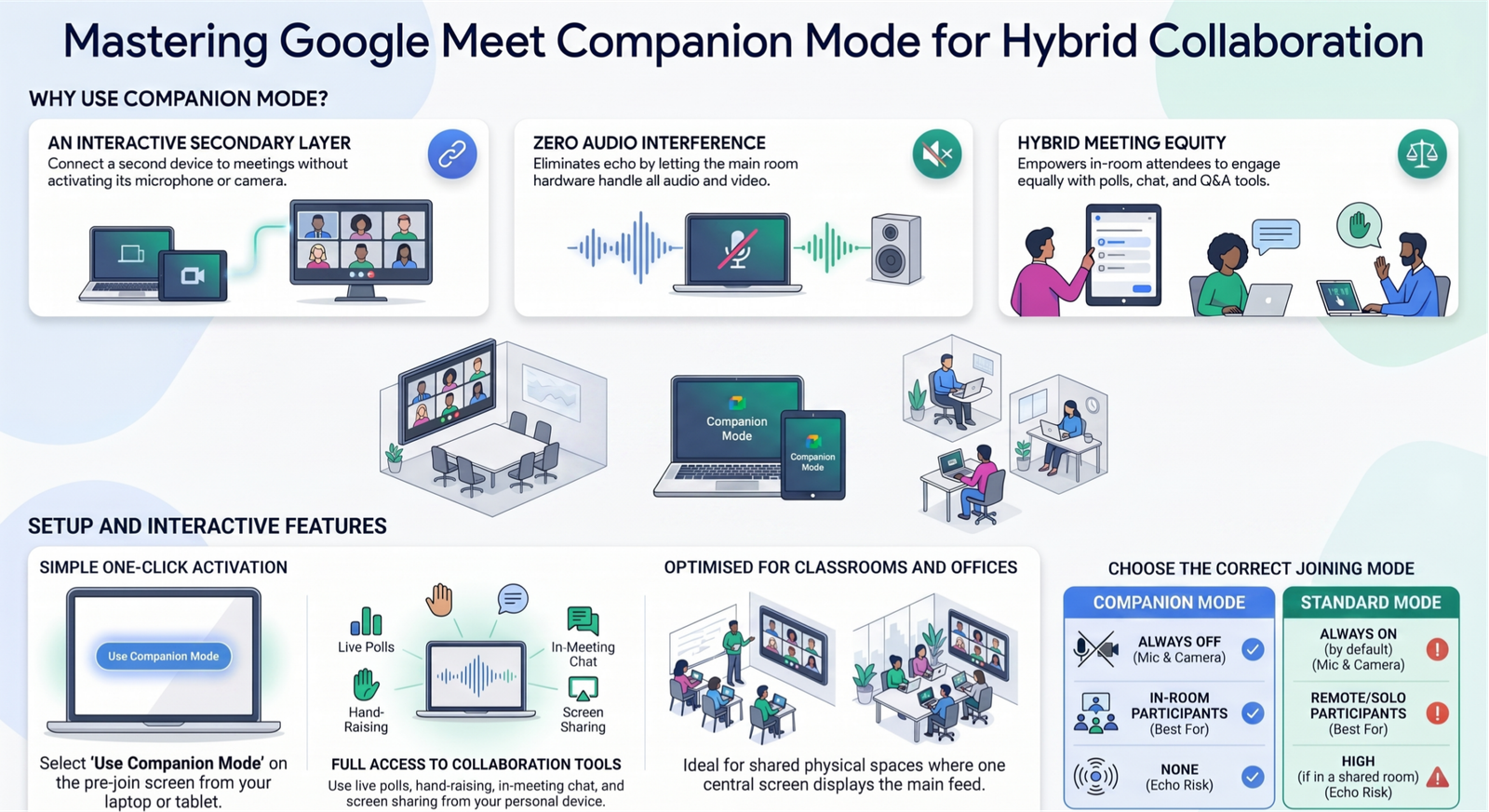
What is companion mode in Google Meet at its core? It is a secondary joining option that lets you connect to an active Google Meet session using a second device — without activating your microphone or camera on that device. Instead of duplicating your audio and causing echo, companion mode allows you to use a laptop or tablet purely for interactive features like polls, Q&A, hand raising, and screen sharing.
This makes it ideal for hybrid meetings where a shared room device (a conference room display or classroom screen) handles the main audio and video feed, and your personal device handles engagement tools. Google Meet Companion Mode was created to provide a more balanced meeting experience by allowing both in-room participants and remote users to engage with the same interactive features.
Why Google Built Companion Mode
Google introduced companion mode as part of its commitment to equitable hybrid work. Before this feature existed, people attending from a conference room had limited ability to use interactive Google Meet meeting tools — they were largely passive viewers on the room display. Companion mode solves that directly by giving every in-room participant their own interactive layer without disrupting the shared audio environment.
The feature is available to Google Workspace accounts and has become a core part of Google’s hybrid meeting strategy across education, enterprise, and government sectors.
How to Use Companion Mode in Google Meet
Understanding what is companion mode in Google Meet is one thing — knowing how to activate it is another. The setup process is straightforward and takes under a minute.
Better meeting participation can improve team productivity. Use our Meeting Cost Calculator to estimate the real cost of meetings and collaboration sessions.
Enabling Companion Mode Step-by-Step
Follow these steps to join a meeting in companion mode:
- Open the meeting link on your secondary device (laptop, tablet, or phone)
- Before joining, click “Use Companion Mode” — this option appears on the pre-join screen below the standard “Join Now” button
- Your device will join the meeting without activating your microphone or speaker, eliminating echo
- You now have full access to Google Meet interactive features — polls, Q&A, chat, hand raise, and screen sharing — on your personal device
- The main room display continues handling all audio and video for the shared space
You do not need to be already in the meeting to use companion mode. Simply open the meeting link on the second device, select the companion mode option, and you’re in. Google Meet companion mode works on Chrome browser and via the Google Meet app on Android and iOS.
Google Meet Companion Mode Features Explained
One of the most valuable aspects of understanding what is companion mode in Google Meet is knowing exactly what tools become available when you use it. The feature is not a stripped-down version of Meet — it’s a fully interactive participation layer.
Google Meet Interactive Features in Companion Mode
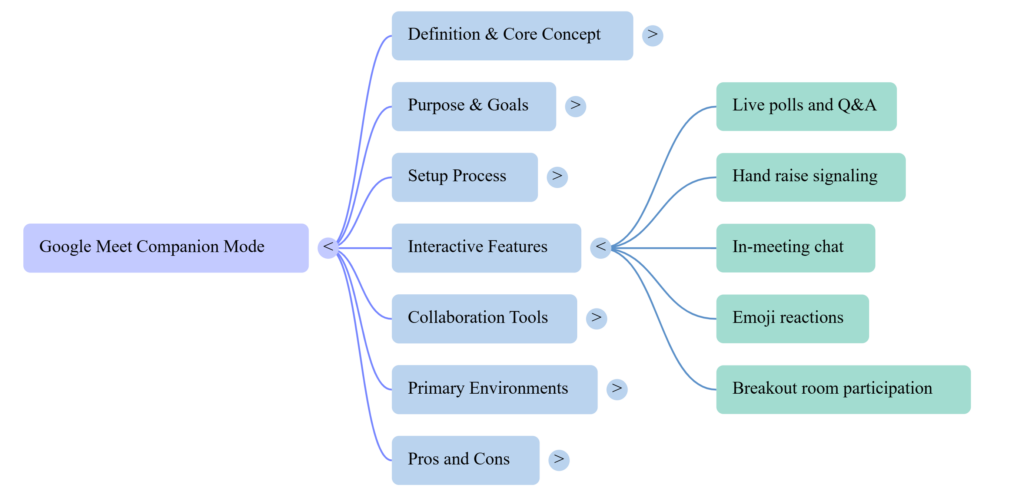
When connected via companion mode google meet, you can access:
- Live polls — vote and respond to polls launched by the host
- Q&A panel — submit and upvote questions in real time
- Hand raise — signal to the host that you want to speak
- In-meeting chat — send messages visible to all participants
- Reactions — send emoji reactions during presentations
- Breakout rooms — join breakout sessions assigned by the host
These google meet interactive features are fully functional in companion mode, meaning in-room attendees are no longer passive. They can engage at the same level as remote participants — which is exactly the equity problem companion mode was built to solve.
Google Meet Collaboration Tools Available
Beyond engagement features, google meet collaboration tools accessible in companion mode include:
- Screen sharing — present your screen directly from your companion device
- Whiteboard integration — access Jamboard or connected whiteboard tools
- Caption display — view live captions independently on your device
- Activity panel — see who’s speaking, participant list, and attendance
These google meet collaboration tools ensure that companion mode isn’t just a passive viewing option — it’s a complete participation upgrade for anyone in a shared physical space.
Companion Mode for Classroom and Conference Rooms
The practical value of what is companion mode in Google Meet becomes most apparent in two specific environments: educational settings and professional conference rooms.
If you regularly organize group discussions, check out our Google Meet Breakout Rooms guide to create smaller collaboration spaces.
Companion Mode for Classroom Use
Companion mode for classroom settings is a powerful equalizer. In a hybrid class, some students attend in person while others join remotely. The classroom screen displays the shared Meet session, but students in the room previously couldn’t interact with polls, quizzes, or Q&A tools without disrupting the audio.
With companion mode for classroom deployment, every student in the room opens the Meet link on their personal Chromebook or tablet in companion mode. They can now:
- Respond to teacher polls in real time
- Submit questions via the Q&A panel without speaking out loud
- See captions on their personal screen
- Participate in breakout group activities alongside remote classmates
This creates a truly equitable learning environment where physical presence doesn’t limit digital participation.
Companion Mode for Conference Rooms
Companion mode for conference rooms solves an almost identical problem in the business world. When a team gathers in a meeting room, the room’s display device handles audio and video. Without companion mode, in-room participants can’t individually interact with google meet participant features.
Companion Mode can work alongside recording features. Learn more in our Google Meet Recording Guide.
With companion mode for conference rooms, each attendee opens Meet on their laptop in companion mode. They can submit questions, vote on polls, share their screen when it’s their turn, and engage with the meeting actively — all without creating audio feedback or echo in the room.
Companion Mode vs Standard Meeting Mode
| Feature | Companion Mode | Standard Meeting Mode |
|---|---|---|
| Microphone active | No | Yes |
| Camera active | No | Yes |
| Chat & reactions | Yes | Yes |
| Polls & Q&A | Yes | Yes |
| Screen sharing | Yes | Yes |
| Hand raise | Yes | Yes |
| Best for | In-room + second device | Remote or solo participants |
Pros and Cons of Google Meet Companion Mode
Like any feature, google meet companion mode has clear strengths and a few limitations worth knowing before you adopt it widely.
Pros:
- Eliminates audio echo in shared room environments completely
- Gives every in-room participant full access to google meet interactive features
- Works across Chrome, Android, and iOS — no special hardware required
- Supports equitable participation in hybrid meetings and classes
- Free to use within all Google Workspace plans that support Google Meet
Cons:
- Audio and video must come from the room device — companion mode alone cannot be used for a complete solo meeting experience
- Requires participants to manage two devices simultaneously, which can be an adjustment
- Some users in older browser versions may not see the companion mode option without updating Chrome
Overall, the benefits of what is companion mode in google meet far outweigh the limitations for any organization running regular hybrid meetings.
If you’re deciding between meeting platforms, read our Google Meet vs Zoom comparison.
Which Is Best — Companion Mode or Standard Mode?
The answer depends entirely on your situation. If you are joining a meeting remotely from home or a solo workspace, standard mode is the right choice — you need your microphone, camera, and full audio to participate normally.
If you are sitting in a physical meeting room or classroom where a shared display is already running the Google Meet session, companion mode google meet is the superior option. It prevents double audio, gives you personal access to all google meet meeting tools, and makes you an equal participant regardless of where you’re sitting.
Think of it this way: standard mode is built for individual remote access. Companion mode is built for physical spaces with shared technology. Using the right mode for the right context is what makes google meet companion mode such a powerful feature for modern hybrid teams.
Conclusion
Now you know exactly what is companion mode in Google Meet — and more importantly, why it matters. Companion mode google meet is not just a technical feature; it’s a fundamental shift in how hybrid participation works. Whether you’re running a hybrid office standup, a university lecture, or a multi-site all-hands meeting, companion mode gives every person in the room a voice, a vote, and a full set of google meet collaboration tools — without disrupting shared audio.
For any organization serious about equitable hybrid work, enabling and educating teams on what is companion mode in google meet is one of the highest-impact steps you can take. Start using it in your next meeting and experience the difference firsthand.
Explore our Digital Productivity guides for workplace productivity tips, collaboration tools, and practical calculators.
FAQs
What is companion mode in Google Meet exactly?
Companion mode is a joining option that connects you to a Google Meet session on a second device without activating your microphone or speaker. It gives you access to all interactive features — polls, Q&A, chat, hand raise — without causing audio echo in shared room environments.
How do I turn on companion mode in Google Meet?
On the pre-join screen when opening a meeting link, click “Use Companion Mode” instead of “Join Now.” This joins you to the meeting in companion mode automatically, with audio and camera disabled on that device.
Is companion mode free in Google Meet?
Yes. Companion mode is available as part of the standard Google Meet experience across Google Workspace plans. It does not require any additional subscription or hardware beyond a supported device and browser.
Can I use companion mode on a phone?
Yes. Google Meet companion mode is supported on Android and iOS via the Google Meet app. On the pre-join screen in the app, select the companion mode option before joining.
What is the difference between companion mode and regular Google Meet?
In standard mode, your microphone and camera are active. In companion mode, audio and video come from a shared room device, and your personal device is used only for interactive features like polls, screen sharing, and chat. Companion mode is designed specifically for hybrid, in-room scenarios.
Does companion mode work for Google Meet breakout rooms?
Yes. Participants using companion mode can be assigned to and join breakout rooms, making it fully functional for interactive workshop and classroom-style sessions.