How to Raise Hand in Zoom: Complete Step-by-Step Guide
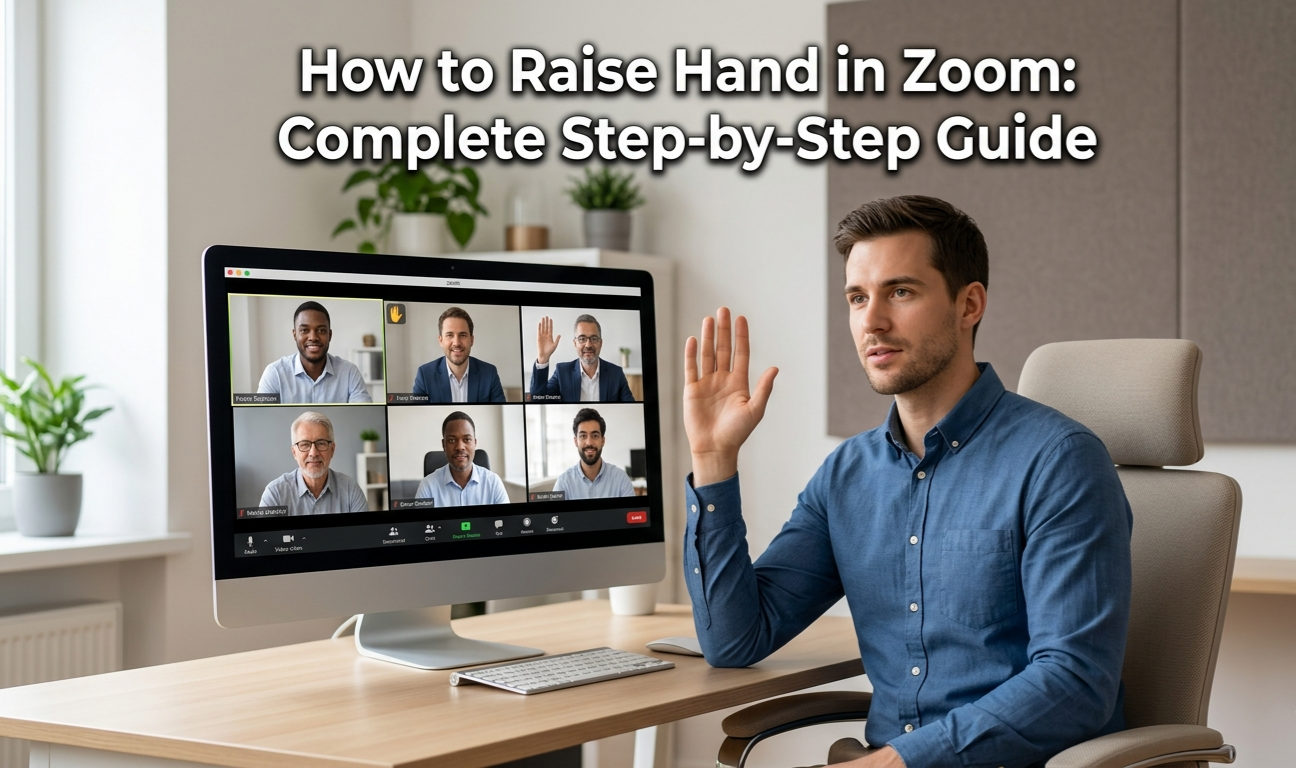
Knowing how to raise hand in Zoom is one of the most useful skills for anyone attending virtual meetings, online classes, or webinars. Whether you are a student, a remote employee, or a team manager, the Zoom raise hand feature keeps meetings organized, professional, and respectful. This guide explains, how to use the Raise Hand feature in Zoom on all major platforms, including desktop computers, smartphones, tablets, and web browsers. Along with clear instructions, it also provides useful tips to help you apply the feature correctly in any meeting, ensuring better structure, clarity, and communication throughout the session.
Table of contents
- What Is the Zoom Raise Hand Feature?
- How to Raise Hand in Zoom on Desktop (Windows & Mac)
- How to Raise Hand in Zoom on Mobile (iOS & Android)
- How to Raise Hand in Zoom on Web Browser
- Zoom Raise Hand Feature – Quick Overview Table
- How to Lower Your Hand in Zoom
- Zoom Meeting Etiquette: When and Why to Raise Your Hand
- Conclusion
What Is the Zoom Raise Hand Feature?
The zoom raise hand feature is a built-in participant tool that lets attendees signal to the host that they want to speak — without interrupting the meeting. When you raise your hand, a small hand icon appears next to your name in the Participants panel, and the host receives a notification.
This feature is especially valuable in large Zoom meetings and webinars where multiple people are on screen at once. Instead of unmuting yourself abruptly or typing in the chat, the raise hand in Zoom meeting option creates a structured, professional flow. Hosts can manage the queue, call on participants in order, and keep discussions on track.
The feature is part of Zoom’s broader zoom participant tools, which include reactions, polling, and chat — all designed to make virtual meeting etiquette seamless and productive.
How to Raise Hand in Zoom on Desktop (Windows & Mac)
If you attend most meetings from a laptop or computer, learning how to raise hand in Zoom
on desktop takes less than a minute. Zoom provides two simple methods.
Active participation can make meetings more productive. Use our Meeting Cost Calculator to understand the real cost of team meetings.
Using the Reactions Panel
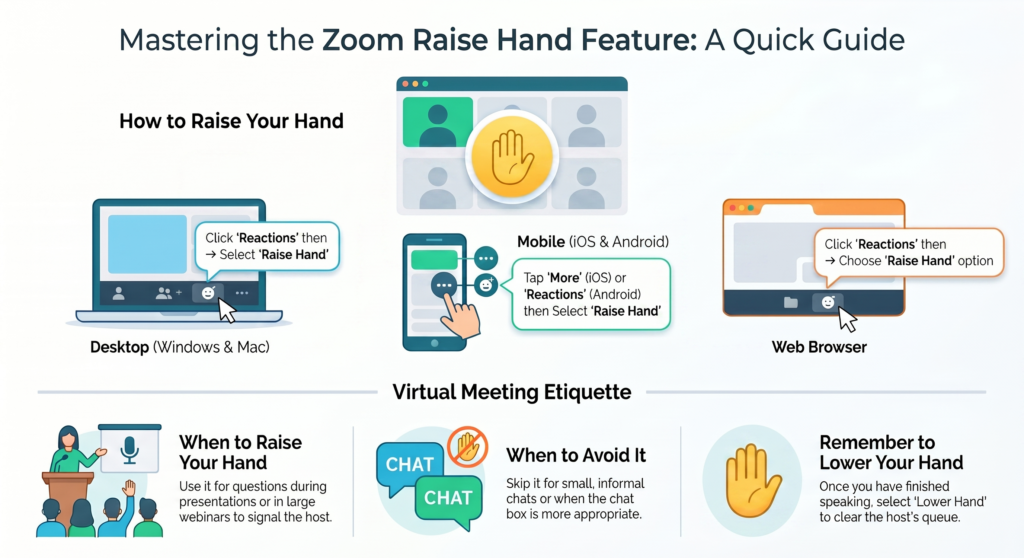
The Reactions panel is the fastest way to use the raise hand in Zoom meeting option on a desktop:
- Join or enter your Zoom meeting.
- Look at the meeting toolbar at the bottom of the screen.
- Click the “Reactions” button (smiley face icon).
- Select “Raise Hand” from the menu that appears.
- A hand icon will appear on your video tile and in the Participants list.
That’s it. The host and co-hosts can now see that you want to speak. This is the most common method because the Reactions panel is always visible during a live meeting.
Using the Participants List
You can also how to raise your hand in Zoom through the Participants panel:
- Click “Participants” in the bottom toolbar.
- A side panel opens on the right side of the screen.
- Scroll to the bottom of the panel.
- Click “Raise Hand.”
Both methods produce the same result. The Reactions panel method is quicker; the Participants panel method is useful if you already have that panel open.
How to Raise Hand in Zoom on Mobile (iOS & Android)
Knowing how to raise hand in Zoom on mobile is just as important since many users attend meetings from smartphones and tablets. While the Raise Hand feature works the same way across all devices, accessing it on mobile requires a slightly different navigation path than on desktop computers.
On iOS Devices (iPhone and iPad)
- Open the Zoom application and join an active meeting.
- Tap “More” in the bottom-right corner (three dots icon).
- Tap “Raise Hand” from the menu.
- A hand icon appears on your screen and notifies the host.
For Android:
- Join your Zoom meeting from the Android app.
- Tap “Reactions” in the meeting controls at the bottom.
- Select “Raise Hand.”
The process is nearly identical across both platforms. If you do not see the Raise Hand option on your mobile device, ensure your Zoom app is updated to the latest version. Outdated versions sometimes hide or reposition zoom meeting controls.
How to Raise Hand in Zoom on Web Browser
If you use Zoom without installing the desktop app, you can still how to raise your hand on zoom from the web browser version:
- Open Zoom in your browser and join a meeting.
- Click “Reactions” from the bottom toolbar.
- Select “Raise Hand” from the dropdown menu.
The web browser version of Zoom mirrors the desktop app closely, so the steps are almost identical. Keep in mind that some advanced features may be limited on the browser version compared to the installed desktop app.
If you’re comparing video conferencing platforms, check out our Google Meet vs Zoom comparison.
Zoom Raise Hand Feature – Quick Overview Table
Here is a quick-reference breakdown of how to raise hand in Zoom across different platforms:
| Platform | Steps to Raise Hand | Location of Option |
|---|---|---|
| Desktop (Windows/Mac) | Reactions panel → Raise Hand | Bottom toolbar |
| Mobile iOS | More → Raise Hand | Bottom-right menu |
| Mobile Android | Reactions → Raise Hand | Bottom toolbar |
| Web Browser | Reactions → Raise Hand | Bottom toolbar |
This table makes it easy to remember the steps no matter which device you are using during your next Zoom meeting.
How to Lower Your Hand in Zoom
Once you have spoken or no longer need the floor, it is important to lower your hand so the host can manage other participants. Here is how to use raise hand in zoom and then turn it off:
On Desktop:
- Click “Reactions” again and select “Lower Hand.”
- Or open the Participants panel and click “Lower Hand.”
On Mobile:
- Tap “More” (iOS) or “Reactions” (Android) and select “Lower Hand.”
Host Lowering a Participant’s Hand: Hosts can also lower a participant’s hand on their behalf. In the Participants panel, the host hovers over a participant’s name and clicks “Lower Hand.” This is a key part of zoom meeting controls for hosts managing large groups.
Zoom Meeting Etiquette: When and Why to Raise Your Hand
Using raise hand in zoom meeting correctly is just as important as knowing the technical steps. Good virtual meeting etiquette makes every session smoother for everyone involved.
When to raise your hand in Zoom:
- You have a question during a presentation or lecture.
- You want to add a comment during a structured discussion.
- You need the host’s attention without interrupting the speaker.
- You are in a webinar where only the host or panelist can unmute.
When NOT to raise your hand:
- In small, informal meetings where open discussion is encouraged.
- When you can simply use the chat for a quick comment.
- During open Q&A sessions where direct unmuting is allowed.
Mastering these unwritten rules of zoom participant tools and reactions puts you ahead in professional and academic settings. Hosts appreciate participants who follow meeting flow — and it makes you look more organized and respectful.
Meeting limits can affect how teams collaborate. Learn more in our Google Meet Time Limit Explained guide.
Conclusion
Now you know exactly how to raise hand in Zoom on every platform — desktop, mobile, and web browser. The zoom raise hand feature is a simple but powerful tool that makes every virtual meeting more organized, respectful, and efficient. Whether you are using Zoom on Windows, Mac, iPhone, or Android, the steps are quick and easy once you know where to look.
Practice using the raise hand in Zoom meeting feature in your next session. Combine it with good virtual meeting etiquette and you will stand out as a professional, considerate participant. For teams that care about meeting productivity and costs, tools like a Meeting Cost Calculator work hand-in-hand with features like Zoom’s participant controls — because better-run meetings save both time and money.
Explore our Digital Productivity guides for collaboration tools, workplace productivity tips, and practical calculators.
FAQs
Q1: How do I raise my hand in Zoom on a phone?
On iPhone, tap “More” then “Raise Hand.” On Android, tap “Reactions” then “Raise Hand.” Both methods notify the host immediately.
Q2: Can the host see when I raise my hand in Zoom?
Yes. When you raise your hand, a hand icon appears next to your name in the Participants list, and the host receives a visual notification. It is one of the most reliable zoom participant tools available.
Q3: Why is my Raise Hand button missing in Zoom?
This usually happens when the Zoom app is outdated, or when the host has disabled participant reactions. Update your Zoom app and check with the host if the option does not appear.
Q4: How do I lower my hand after raising it in Zoom?
Click or tap the same “Reactions” or “More” menu and select “Lower Hand.” You can also wait for the host to lower it on your behalf.
Q5: Does raising your hand in Zoom send a notification?
Yes. The host and co-hosts see a notification and a hand icon in the Participants panel. This is exactly why the zoom raise hand feature is preferred over typing in chat during large meetings.
Q6: Can I raise my hand in a Zoom webinar?
Yes. The raise hand function works in Zoom webinars too. It signals to the host or panelist that you have a question and is the standard way to request speaking time as an attendee.