Join Teams Meeting With Code Guide to Microsoft Teams Meeting Code
Microsoft Teams has become one of the most widely used communication tools worldwide, relied on by hundreds of millions of users in modern digital workplaces. An essential skill for users is knowing how to join a Teams meeting using a code, particularly when the invitation lacks a direct clickable link. Whether you are a guest joining from outside an organisation, a colleague accessing a meeting from a different device, or someone whose link simply did not work, knowing exactly how to join teams meeting with code — and how to use a teams meeting by ID — removes the friction. That can make the first minutes of any meeting unnecessarily stressful. This complete guide covers every method, every device, and every scenario where join teams meeting with code is the solution you need.
Table of contents
- What Is a Teams Meeting Code?
- Feature Breakdown — How to Join Teams Meeting With Code
- Teams Meeting by ID — Finding the Right Code
- Teams Meeting Code Entry Reference Table
- Pros and Cons of Joining Teams Meeting With Code
- Teams Meeting Code Not Working — Troubleshooting
- Which Is Best — Code vs Link vs Calendar Entry
- Conclusion
What Is a Teams Meeting Code?
When a Microsoft Teams meeting is created, it generates several pieces of identifying information that participants can use to access the session. The most widely recognised is the clickable link — but Teams also assigns a meeting ID and, in some configurations, an access passcode that together enable direct entry without the original invitation link.
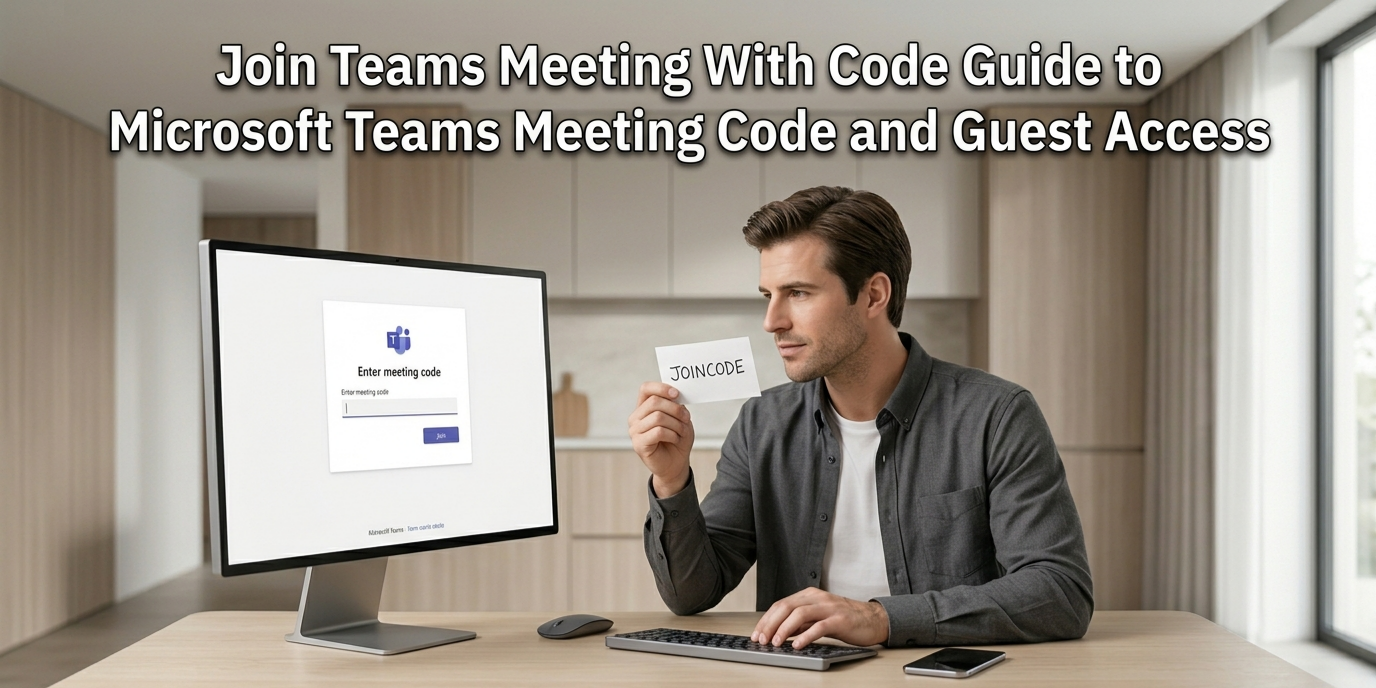
To join teams meeting with code, users navigate to the code or ID entry interface within the Teams application or browser version and input the relevant identifier. This method is particularly valuable for guest users who are joining from outside the host’s organisation, participants accessing the meeting from a different device than the one that received the original invite, and anyone whose meeting link has expired or failed to load correctly.
The teams meeting by ID method and the teams meeting with meeting id approach are effectively the same mechanism — Microsoft Teams uses numeric meeting IDs generated when the meeting is scheduled. These IDs are typically nine-digit numbers visible in the meeting invitation details, in the calendar entry, or at the bottom of the Teams meeting link itself.
Understanding the distinction between the meeting ID, the passcode, and the full meeting link helps users identify exactly which credential they need to enter and where to enter it — the core knowledge that makes join teams meeting with code a reliable fallback when other access methods are unavailable.
Feature Breakdown — How to Join Teams Meeting With Code
The process of how to join teams meeting with code varies slightly depending on whether you are using the Teams desktop application, the mobile app, or the browser version. All three paths lead to the same entry point, but the navigation differs.
Efficient meetings save both time and money. Use our Meeting Cost Calculator to estimate the real cost of team meetings.
On the Teams Desktop Application:
Open Microsoft Teams and look for the calendar icon in the left sidebar. In top-right area of the calendar view, there is a button “Join with a code” or “Use a meeting ID.” Click this option. A prompt box will show up requesting the numeric meeting ID for joining the meeting. If the organizer has enabled security settings, you will also need to provide the passcode to continue.
On Microsoft Teams Mobile (iOS or Android):
Open the Teams app on your device. Press the calendar icon shown at the bottom of the screen. Look for the option to join with a meeting ID — this is typically accessible through a button in the upper right corner of the calendar screen or through a plus icon. Enter the meeting ID in the first field and the passcode in the second field if required. Tap Join and you will be placed in the meeting lobby awaiting the organiser’s admission.
Without a Teams Account (Guest Access):
If you’re evaluating collaboration platforms, read our Google Meet vs Zoom comparison.
Teams Meeting by ID — Finding the Right Code
Before you can join teams meeting with code, you need the correct meeting ID. Knowing where to find it prevents the most common source of failed code entry — using an incorrect or truncated identifier.
In the meeting invitation email: Scroll to the bottom of the Teams meeting invitation. Below the clickable join link, there is a section showing the meeting ID as a series of numbers, often formatted with spaces for readability. Copy or note the full numeric sequence without spaces.
In the Teams calendar: If the meeting appears in your Teams calendar, clicking on the event shows the meeting details including the meeting ID in the event description.
From the join link itself: Teams meeting links contain the meeting ID embedded in the URL. The numeric sequence following specific URL parameters is the meeting ID that can be used for the teams with meeting id entry method.
From the meeting organiser: If none of the above sources are available, contacting the meeting organiser directly and requesting the meeting ID and passcode is the most reliable approach.
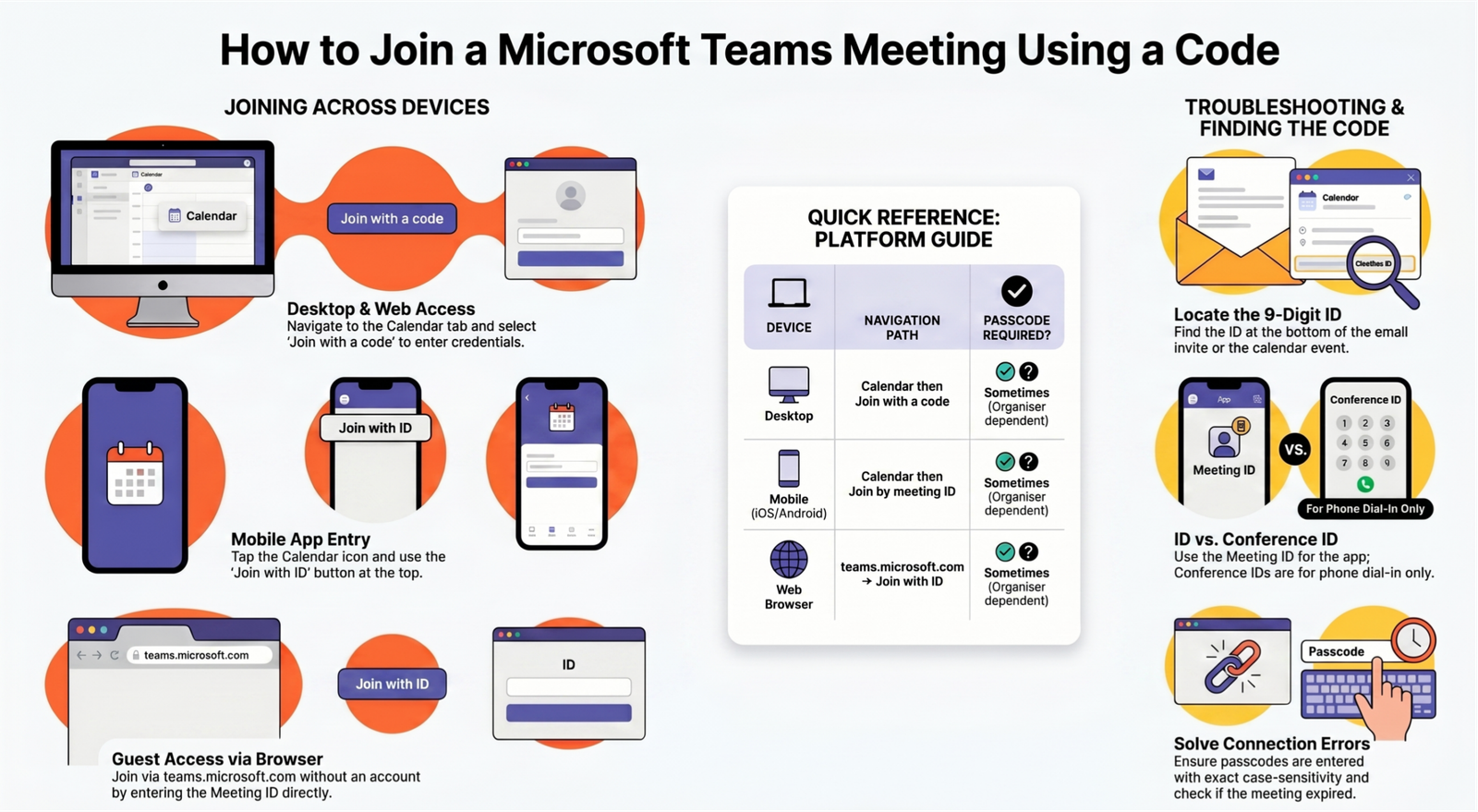
Teams Meeting Code Entry Reference Table
| Entry Point | Device | Steps to Access Code Entry | Passcode Required? |
| Calendar → Join with ID | Desktop app | Calendar icon → Join with a code button | Sometimes — depends on organiser |
| Calendar → Join with ID | Mobile app | Calendar tab → Join by meeting ID | Sometimes — depends on organiser |
| Web interface | Browser | teams.microsoft.com → Calendar → Use meeting ID | Sometimes — depends on organiser |
| Guest access | Browser only | Join without account → Enter meeting ID | Controlled by host organisation |
| Teams admin centre | Admin only | Not applicable for standard participants | N/A |
Pros and Cons of Joining Teams Meeting With Code
Advantages of using the code entry method:
The join teams meeting with code approach works across all device types and operating systems without requiring the original invitation link to be functional. It is particularly valuable in enterprise environments where security settings sometimes break or expire meeting links, or where participants are using devices that did not receive the original invitation. The method also enables last-minute inclusion of participants who were not on the original invitation list — the organiser simply shares the meeting ID and passcode verbally or through a quick message rather than resending the full invitation.
Guest access through code entry removes the requirement for external participants to have a Microsoft Teams account or licence — reducing the friction of bringing outside collaborators, clients, or partners into a meeting. Without requiring them to create accounts they do not otherwise need.
Limitations and considerations:
The join teams meeting with code method depends entirely on the host organisation’s Teams settings. Organisations that have restricted guest access, disabled the meeting ID join option, or applied security policies that limit external entry will prevent code-based joining regardless of whether the participant has correct credentials. Meeting codes and IDs also expire — a meeting ID from a recurring series may change after a certain period, and passcodes can be regenerated by organisers, making previously correct credentials suddenly non-functional.
The passcode requirement adds an additional credential that participants must obtain and enter correctly. Unlike simple password entry, Teams passcodes are case-sensitive alphanumeric strings that must be entered exactly as provided — a common source of failed join attempts. Messaging platforms that autocorrect capitalisation can alter passcodes when users share them.
Meeting limits vary across platforms. Learn more in our Google Meet Time Limit Explained guide.
Teams Meeting Code Not Working — Troubleshooting
When join teams meeting with code fails, the error is almost always attributable to one of a small number of causes that systematic troubleshooting resolves quickly.
Wrong meeting ID format: Teams meeting IDs are typically nine-digit numbers. If the ID you have includes letters, spaces in the wrong places, or appears shorter than expected, verify you are using the correct section of the invitation — not the conference ID used for phone dial-in, which is a different identifier.
Expired meeting: Teams meetings created for a specific time have IDs that may expire after the meeting ends. If you are attempting to join after the scheduled end time, the code will not function. Contact the organiser to confirm the meeting is still active.
Passcode error: Passcodes are case-sensitive. Ensure caps lock is not active, that you are entering the passcode from a reliable source rather than a forwarded message that may have been reformatted, and that no leading or trailing spaces are included in the entry field.
Guest access disabled: If your organisation or the host organisation has disabled guest access, the code entry method will not work for external participants. The organiser must either adjust their meeting settings or add you as an authenticated participant.
Teams application not updated: Outdated Teams applications sometimes fail to process meeting IDs correctly. Ensure your Teams desktop or mobile app is running the current version before attempting to join teams meeting with code again.
For official Microsoft guidance on meeting access settings and administrative controls that affect the join teams meeting with code functionality, Microsoft’s official Teams support documentation provides current troubleshooting articles and configuration guides maintained by Microsoft’s support team.

Which Is Best — Code vs Link vs Calendar Entry
For most standard participants with a valid invitation, clicking the join link in the original invitation email or calendar entry is the simplest and most reliable method. It requires no credential entry and handles authentication automatically.
The join teams meeting with code method is best suited for scenarios where the link is unavailable, broken, or has not been received — and for guest participants who need to join without a Teams account. The teams meeting by id approach is also the preferred method when the meeting organiser wants to share access credentials verbally during a live session rather than sending a link.
For better meeting participation, see our How to Raise Hand in Zoom guide.
The teams with meeting id approach offers no practical advantage over the link method for participants who have a working invitation — its value is specifically in scenarios where the link is the problem rather than the solution.
Conclusion
The ability to join teams meeting with code is a practical and frequently essential skill for any Microsoft Teams user — particularly guest participants, users on unfamiliar devices, and anyone whose original invitation link has failed. Understanding the teams meeting by id system, knowing where to find the correct meeting ID in your invitation, entering the passcode correctly, and recognising the troubleshooting steps for when code entry fails puts you in control of your meeting access regardless of what the invitation delivery situation looks like. The code entry method is not a workaround — it is a fully supported Teams feature designed precisely for the situations where the standard link-click approach is unavailable. Master it once and you will never be locked out of a Microsoft Teams meeting again.
Explore our Digital Productivity guides for collaboration tools, workplace productivity tips, and practical calculators.
FAQs
How do I join teams meeting with code if I don’t have a Teams account?
Navigate to teams.microsoft.com in your browser, select the option to join a meeting, and enter the meeting ID when prompted. Teams allows guest access through the browser without a Microsoft account, though this is subject to the host organisation’s privacy and guest access settings.
Where do I find the teams meeting with meeting id in an invitation?
Scroll to the bottom of the Teams meeting invitation email. Below the main join link, the meeting ID appears as a numeric sequence — typically nine digits — often followed by a passcode if the organiser has enabled one.
Why is my teams meeting code not working?
An expired meeting ID, incorrect passcode capitalisation, disabled guest access by the host organisation, or an outdated Teams application most commonly causes this issue. Verify each of these factors systematically before contacting the organiser.
Can I join a teams meeting by id from a mobile device?
Yes — the Teams mobile app on both iOS and Android supports joining by meeting ID through the calendar tab. Tap the join by meeting ID option, enter numeric ID and passcode, then tap Join to proceed to the lobby.
Is the meeting ID the same as the conference ID?
No — these are different identifiers. Use the meeting ID to join Teams meeting with code through the app or browser. Use the conference ID for telephone dial-in access. Ensure you are using the correct identifier for your intended access method.
How long is a Teams meeting ID valid?
Teams meeting IDs for scheduled one-time meetings are valid during the scheduled meeting window. Recurring meeting IDs may remain consistent across occurrences or regenerate depending on the organiser’s settings. Channel meeting IDs behave differently from scheduled meeting IDs.