Turn Off Live Caption on Chrome and Android Guide 2026

If you have ever been in the middle of a virtual meeting or watching a video and suddenly a caption bar appears at the bottom of your screen, you already know how distracting it can be. Learning how to turn off live caption is a quick fix that most users need at some point — whether on a Chrome browser or an Android device. This guide provides easy-to-follow, step-by-step instructions for disabling live captions across different platforms, giving you greater control over your viewing and screen experience.
Table of contents
What Is the Live Caption Feature?
The live caption feature is an accessibility tool developed by Google. It automatically generates real-time subtitles for any audio or video playing on your device — no internet connection required. Google designed this feature mainly to improve accessibility for people who are deaf or have hearing difficulties, while also helping language learners better understand spoken content.
Live captions appear automatically on Android devices running Android 10 and above, and on Google Chrome browsers across desktop and mobile. While it is a genuinely useful live caption accessibility setting for many people, others find it intrusive — especially during focused work sessions, virtual meetings, or video calls. If you fall into the second group, knowing how to turn off live caption is essential.
How to Turn Off Live Caption on Chrome
Whether you use Chrome on a Windows PC, Mac, or Chromebook, the live caption settings are accessible in just a few clicks. There are two methods to how to turn off live caption on Chrome — through the Settings menu or directly from the browser toolbar.
Live captions can improve meeting accessibility and participation. Use our Meeting Cost Calculator to understand the impact of meeting efficiency on team productivity.
Disable Live Captions in Chrome Settings
This is the most reliable method to permanently disable live captions in the Chrome browser:
- Open Google Chrome on your computer.
- Tap the three-dot icon (⋮) at the top-right of the screen.
- Select “Settings.”
- In the left sidebar, click “Accessibility.”
- Find the “Live Caption” toggle.
- Switch it OFF.
Once toggled off, captions will stop appearing for all audio and video content you play in Chrome. This setting persists even after you close and reopen the browser.
Turn Off Live Caption from the Chrome Toolbar
If a caption bar is already active on your screen, you can quickly stop automatic captions without opening Settings:
- Look for the caption bar at the bottom of your Chrome window.
- Click the small “X” or close icon on the right side of the caption bar.
- Chrome will ask if you want to turn off live captions.
- Confirm by selecting “Turn Off.”
This is the fastest way to how to turn off live caption on Chrome when captions appear unexpectedly during a meeting or video session.
How to Turn Off Live Caption on Android
Android devices have live captions enabled as a system-wide feature. When you know how to turn off live caption on Android, you can stop captions from appearing across all apps — including media players, social apps, and video calls.
Turn Off Live Captions via Quick Settings Panel
The quickest method to turn off live captions Android is through the notification shade:
- Swipe down from the top of your Android screen to open the Quick Settings panel.
- Swipe down again to expand all quick setting tiles.
- Look for the “Live Caption” tile (it looks like a speech bubble with lines).
- Tap it once to toggle it off.
If the Live Caption tile is not visible, tap the pencil/edit icon to customize your Quick Settings and add it. This method gives you instant control to turn off live caption Android with a single tap.
If you frequently attend online meetings, check out our Google Meet Recording Guide to learn how meeting recordings work alongside accessibility features.
Disable Live Captions in Android Accessibility Settings
For a permanent solution to how to turn off captions on Android, use the Accessibility menu:
- Open your Settings app.
- Scroll down and tap “Accessibility.”
- Tap “Live Caption” or “Caption preferences” (varies by Android version).
- Toggle “Use Live Caption” to OFF.
This approach is compatible with Android 10 and later versions, including devices from Samsung Galaxy, Google Pixel, OnePlus, and many other Android smartphone brands. Once disabled here, the live caption feature will not activate automatically when media plays.
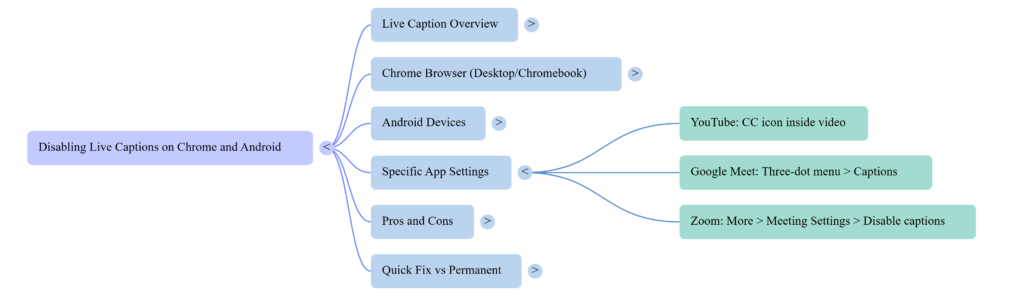
How to Turn Off Captions on Android for Specific Apps
Sometimes you may want to disable captions on device only for certain apps — for example, keeping captions on for YouTube but turning them off during Zoom calls. Here is how to manage this:
For YouTube:
- Open the YouTube app → tap a video → tap the CC (Closed Caption) icon → select “Off.”
For Google Meet / Zoom:
- In Google Meet: tap the three-dot menu → select “Captions” → toggle off.
- In Zoom: tap “More” → “Meeting Settings” → disable “Always show meeting captions.”
In system media (Android):
- The Android Live Caption feature is separate from in-app captions. Follow the Quick Settings or Accessibility steps above to remove live captions at the system level.
Managing captions at both system and app level gives you full control over your live caption accessibility settings without disabling helpful features entirely.
Live Caption Settings – Quick Reference Table
Here is a simple overview of where to find live caption controls on each platform:
| Platform | Where to Find It | Steps to Turn Off |
|---|---|---|
| Chrome Desktop | Settings → Accessibility | Toggle Live Caption OFF |
| Chrome Mobile | Chrome Settings → Accessibility | Toggle Live Caption OFF |
| Android Quick Settings | Swipe-down notification panel | Tap Live Caption tile OFF |
| Android Accessibility | Settings → Accessibility → Live Caption | Toggle OFF |
| YouTube App | CC icon inside video player | Select “Off” |
| Zoom App | More → Meeting Settings | Disable meeting captions |
Use this table as a quick cheat sheet whenever captions reappear unexpectedly on your device.
Pros and Cons of the Live Caption Feature
Before you permanently disable live captions, it helps to understand what you are turning off. The live caption feature has genuine strengths — but it is not right for every situation.
Pros of Live Caption:
- Works offline — no internet needed for real-time captioning
- Increases accessibility for deaf and hard-of-hearing users
- Useful during noisy environments when audio is hard to follow
- Supports learning new languages by reading along with speech
- Works across most media apps and browsers
Cons of Live Caption:
- Can obstruct screen space during meetings or video calls
- Sometimes generates inaccurate captions for accents or technical terms
- May slow down older Android devices
- Captions can be distracting during focused work
- Not always easy to quickly toggle off mid-meeting
For professionals using virtual meeting tools daily, the distraction factor often outweighs the accessibility benefit — which is exactly why knowing how to turn off live caption is such a sought-after fix.
Understanding meeting settings is just as important as knowing platform limits. Read our Google Meet Time Limit Explained guide for more details.
Which Option Is Best for You?
If you want to turn off live captions permanently and never see them again, use the Accessibility Settings method on Android or the Chrome Settings method on desktop. Both provide lasting results that survive reboots and app updates.
If you want to stop automatic captions temporarily — for example, during a single meeting — use the Quick Settings tile on Android or the caption bar close button on Chrome. These let you re-enable the feature later without digging through menus.
Conclusion
Now you have everything you need to know about how to turn off live caption — whether on Chrome, Android, or inside specific apps. The process takes under a minute once you know where to look. Use the Accessibility Settings path for a permanent fix, or the Quick Settings tile for fast, on-the-fly control.
The live caption feature is a powerful accessibility tool, but it is not something every user needs running at all times — especially during professional meetings where screen clarity and focus matter. Taking control of your live caption settings is one small step toward a more streamlined, distraction-free virtual meeting experience.
Explore our Digital Productivity guides for collaboration tools, productivity tips, and practical calculators.
For more tips on optimizing your meeting tools and tracking productivity, explore the Meeting Cost Calculator and related guides on this blog.
FAQs
Q1: How do I permanently turn off live captions on Android?
Go to Settings → Accessibility → Live Caption and toggle it off. This permanently disables the feature at the system level until you manually re-enable it.
Q2: Why do my live captions keep turning back on?
This can happen if an app has its own caption setting enabled independently, or if a system update resets your accessibility preferences. Check both system settings and individual app caption controls.
Q3: Where is the live caption setting in Chrome?
Open Chrome → click the three-dot menu → Settings → Accessibility → Live Caption toggle. This is the main location to how to turn off live caption on Chrome.
Q4: Can I turn off live captions for one app but keep them on for others?
Yes. The Android system Live Caption can be left on while individual apps like YouTube or Zoom have their own in-app caption toggles. Manage both independently for full control.
Q5: Does turning off live caption affect other accessibility features?
No. Disabling Live Caption only stops the real-time automatic subtitle overlay. All other accessibility tools — screen readers, font size, contrast settings — remain completely unaffected.
Q6: How do I turn off captions on Android during a Zoom call?
Inside Zoom, tap “More” → “Meeting Settings” → disable “Always show meeting captions.” For system-level captions, swipe down and tap the Live Caption quick tile off before joining your call.